
ERR_BLOCKED_BY_RESPONSE Error – 6 Ways to Fix It
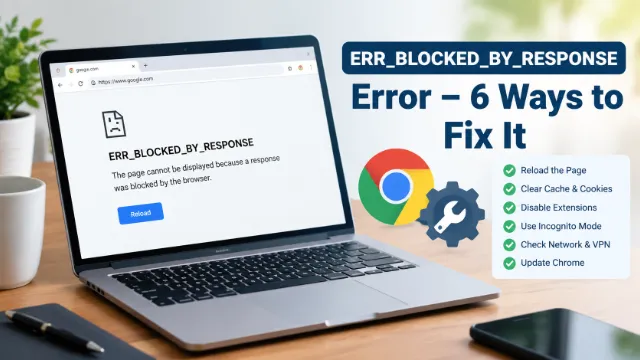
ERR_BLOCKED_BY_RESPONSE Error – 6 Ways to Fix It
You open a website in Chrome wait for the page to load and instead of seeing what you expected you get an error message ERR_BLOCKED_BY_RESPONSE.
It is frustrating because the message does not really tell you what went wrong. You may even find that other websites are working perfectly which makes the problem even more confusing.
This error generally means Chrome has received a response from the website but has decided not to display it. A browser extension that saved browser data, network setting or the website itself can sometimes be responsible.
You do not need to be a computer expert to troubleshoot it. Try the following fixes one at a time. In many cases the problem can be sorted out within a few minutes.
1. Reload the Page
Before changing anything in Chrome simply reload the page.
A website can occasionally fail to respond properly because of a temporary connection problem or a short-lived server issue. Close the error message click the reload button and give the page another try.
You can also press Ctrl + R on a Windows computer.
If that does not help then try a hard refresh with Ctrl + Shift + R. This tells Chrome to request the page again instead of relying on some of the files it already has stored.
If the website opens after the second attempt there may not be anything wrong with your computer at all. It could have been a temporary problem with the connection or website.
2. Clear Chrome’s Cached Data
Chrome stores pieces of websites on your computer so that pages can load faster when you visit them again. Usually this is useful. Old or damaged cached file can cause unexpected loading problems.
Open Chrome and go to its Settings. Find the privacy or browsing data section and choose the option to clear browsing data.
Start by clearing cached images and files. Then restart Chrome and visit the website again.
If the error is still there then you can also try clearing cookies for the affected website.
There is one thing to remember before doing these removing cookies can sign you out of websites where you are currently logged in. If you are unsure about your passwords then avoid clearing all cookies and try the cache-only option first.
Also Read: How to Fix Keyboard Isn’t Working on Laptop? Detailed guide
3. Turn Off Extensions Temporarily
Think about the Chrome extensions you have installed. Do you use an ad blocker? A privacy extension? A VPN extension? Maybe you have a security tool running in the background.
Extensions can sometimes interfere with the way Chrome communicates with websites.
You can test this without uninstalling anything. Open Chrome’s extensions section and temporarily switch off your extensions. Then return to the website and refresh it.
If the page suddenly works then turn the extensions back on one by one. This makes it easier to find the one causing the problem.
Once you identify it then check whether an updated version is available. You may also be able to add the affected website to the extensions allowed list.
This is especially worth trying if the error appeared shortly after you installed or updated an extension.
4. Open the Website in Incognito Mode
Another useful test is Chrome Incognito mode.
Open a new Incognito window and enter the website address. If the page loads there but refuses to load in your regular Chrome window that gives you an important clue.
The problem may be connected to your normal browsing profile such as stored cookies, cached information or an extension.
Incognito mode is not necessarily the final solution. Instead use it as a quick way to determine where the problem is coming from.
If the website works in Incognito go back to your normal Chrome profile and start checking extensions and stored browser data.
5. Disconnect Your VPN or Check the Network
Your internet connection is another possible cause.
If you are using a VPN disconnect it temporarily and try loading the website again. VPNs can change the route your connection takes to a website and some websites treat traffic from certain VPN servers differently.
This simple test can tell you whether Chrome is actually the problem.
If the website works on the second network or your original connection or proxy or network filtering may be involved.
People using office, school, college or public Wi-Fi should also remember that these networks sometimes have restrictions that do not exist on a private connection.
6. Update Chrome and Test Another Browser
If you have tried everything above and the error continues then check your Chrome version then Browser updates are not just about getting new features. They also include security changes and compatibility improvements. A website may behave differently with an older browser version.
Open Chrome settings and go to About Chrome. If an update is available simply install it and restart the browser. After restarting try the website again. And it is also worth opening the same page in another browser such as Edge or Firefox. If it works there the problem may be limited to your Chrome installation or settings. And if the website fails in several browsers and on different devices the issue may be on the website side. In that situation changing Chrome settings repeatedly probably will not help.
Also Read: Top 5 Ways to Fix Windows 11 Stuck on Restarting?
What If Nothing Fixes ERR_BLOCKED_BY_RESPONSE?
Sometimes the problem is simply outside your control.
A website owner may have changed a server configuration or response header. A temporary server problem can also prevent certain browsers or networks from accessing a page correctly.
Before spending a lot of time changing advanced settings check whether other people can access the same website. You can also wait a little while and try again later.
If only one particular website produces the error while everything else works normally that is a useful clue. It suggests that the website or the connection between your browser and that website may be responsible.
Last Words
ERR_BLOCKED_BY_RESPONSE can look like a complicated Chrome problem but you can usually narrow it down without making major changes to your computer and Start with the easy options reload the page clear cached data and temporarily disable extensions. If those do not help then test Incognito mode or disconnect your VPN and try another network then finally make sure Chrome is updated and check the website in another browser. And the goal is not to try every possible setting at once. Test one thing at a time. That way if the website starts working you will have a much better idea of what actually caused the error.